
This article will explain how to move data from one list to another list and save the data in the folders and subfolders by Power Automate Flow.
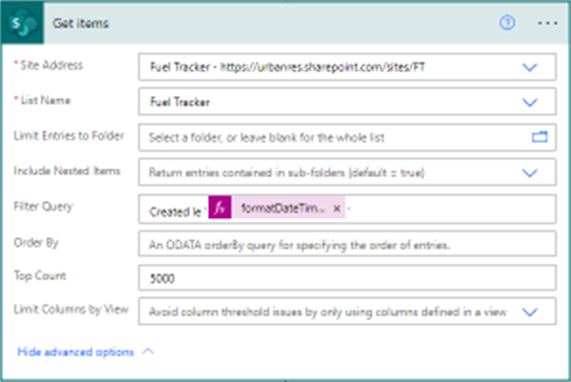
Step 1: Get Items from share point list as below:
Step 2: Initialize Variables
We should initialize the variables to help us to find the correct path of the list, folders, and subfolders.
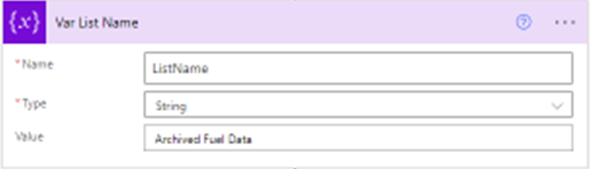
- Here we are initializing the variable for the list Name
- Here we are initializing variables for subfolders assuming we have a static folder named, for example, 2022, So we should determine the subfolder dynamically as below:
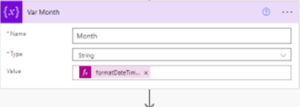
- If assuming the flow will trigger monthly on the first day of each month, for example (2022-June-1)
We should format the value of the variable as this:
* formatDateTime(addDays(utcNow(),-1,’yyyy-MM-dd’),’MMMM’)
In this format, if today 2022-June-1 will reduce the day 1 and format the date to month name to determine the folder name because we want to distribute the data per month, So the result will be (May).
- Here we should initialize the variable to determine the full path of the subfolder in SharePoint as below:
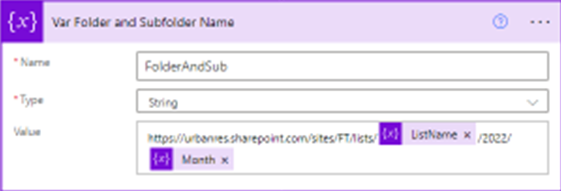
Put your code like this code below:
https://Contoso.com /sites/FT/lists/@{variables(‘ListName’)}/2022/@{variables(‘Month’)}
Note:
- 2022: Consider the Folder.
- @{variables(‘Month’): Consider the Subfolder.
Step 3: Send HTTP request to SharePoint
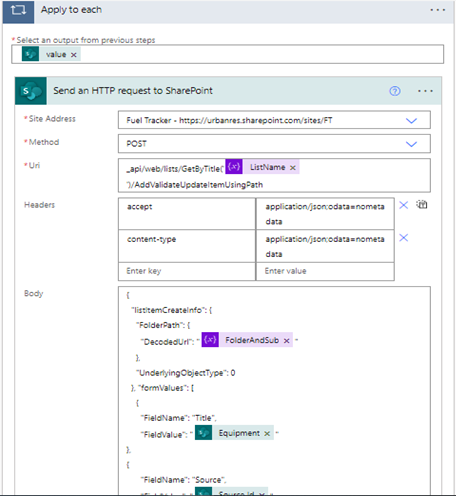
You should follow the screenshot below to fill in the parameters correctly:
- Fill the site address you want to move to.
- Method POST.
- Fill in the URI this code (Change the parameter based on your parameters) _api/web/lists/GetByTitle(‘@{variables(‘ListName’)}’)/AddValidateUpdateItemUsingPath .
- Fill in the Header as the screenshot.
- Fill in the body as below format :
{
“listItemCreateInfo”: {
“FolderPath”: {
“DecodedUrl”: “@{variables(‘FolderAndSub’)}”
},
“UnderlyingObjectType”: 0
}, “formValues”: [
{
“FieldName”: “Title”,
“FieldValue”: “@{items(‘Apply_to_each’)?[‘Title’]}”
},
{
“FieldName”: “Source”,
“FieldValue”: “@{items(‘Apply_to_each’)?[‘Source/Id’]}”
},
{
“FieldName”: “Company”,
“FieldValue”: “@{items(‘Apply_to_each’)?[‘Company/Value’]}”
}
]
,
“bNewDocumentUpdate”: false
}
Note: in the Field name put the name of the column (Correct Name is important as SharePoint) and in the Field value
Item value that is given from Get Items step
I found this pattern the easiest way to move the data and save the data in folders and subfolders dynamically.
Other Resources:
- Power Automate Documentation: https://docs.microsoft.com/en-us/power-automate/
- Microsoft Learning: https://docs.microsoft.com/en-us/learn/